Solutions Overview
From capture to governance, InfoConnect helps you streamline document workflows, automate processes, and deliver trusted information across your organisation—securely and at scale.

From capture to governance, InfoConnect helps you streamline document workflows, automate processes, and deliver trusted information across your organisation—securely and at scale.

From capture to governance, InfoConnect helps you streamline document workflows, automate processes, and deliver trusted information across your organisation—securely and at scale.

See how organisations streamline document workflows, strengthen governance, and improve operational efficiency with InfoConnect.

Practical insights on document management, workflow automation, e-Invoicing, governance, and industry trends—written for teams modernising enterprise operations.

Join live sessions and on-demand webinars to see real use cases, product walkthroughs, and best practices from InfoConnect experts and partners.

Build capability with structured training programs—designed for teams adopting document, workflow, and governance solutions at scale.

Download concise, practical guides to help you plan, evaluate, and implement enterprise information management and automation—backed by proven frameworks.
InfoConnect, established in 1994, is a Malaysia-based information management and automation solutions provider—helping organisations capture, manage, secure, and deliver critical information with greater efficiency and governance.

Thank you for your interest in InfoConnect as a platform for your employment opportunities. We are currently searching for talented individuals to join our ever growing family.
Tell us what you’re trying to improve—document management, workflow automation, e-Invoicing, analytics, or governance. Our team will respond within 1 business day.
 Huey May

Docuflo Web Scan Agent is built to serve third-party web applications by enabling the connection to desktop scanner and uploading the scanned file back to the integrated channel through POST request or a network folder.
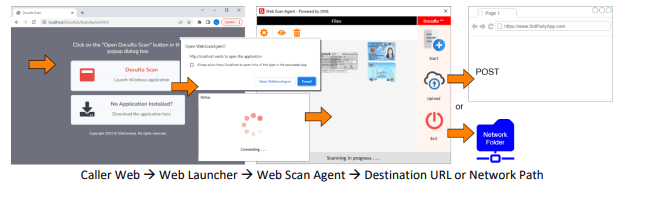
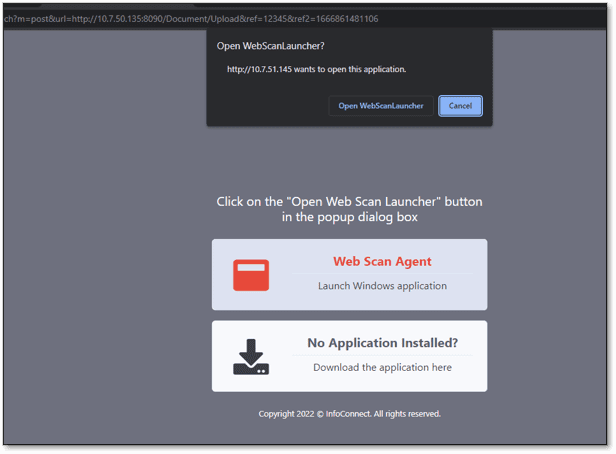
1. User will be directed to this screen to launch the Web Scan Agent. For first-time users, click on [Download the application here] button to install the Web Scan Launcher application into your computer.
2. Once the application is installed, click on the button [Open Web Scan Launcher] in the pop-up box.
3. The Options screen will pop up for user to select the Device/Scanner, Resolution, Scan Type and Scan Mode. Once done, click [Save] to continue.
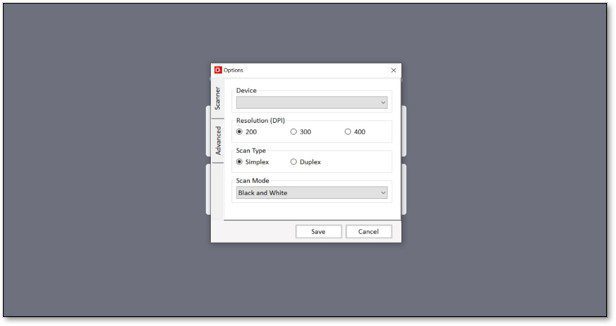
4. In the subsequent pop-up box, click [Continue Scan].
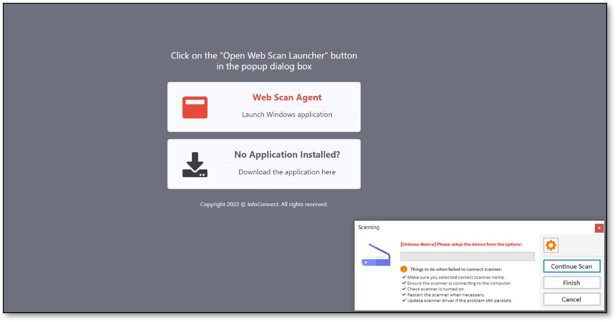
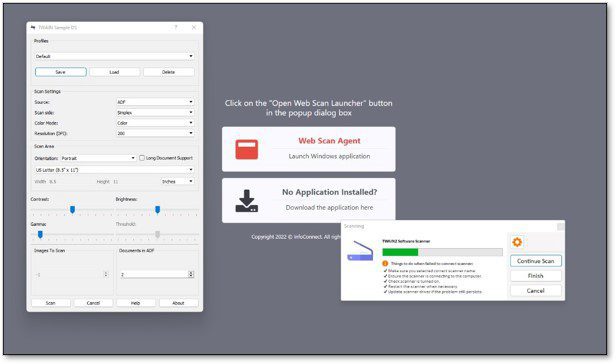
5. Your scanner details will then pop up, click [Scan] to proceed.
6. A pop up from Web Scan Agent would notify once the scan is successful. Click [OK] to continue.
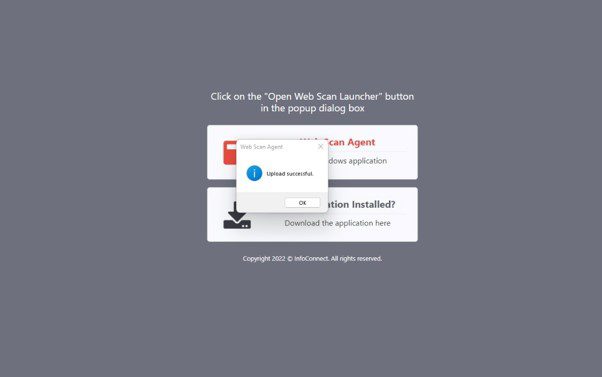
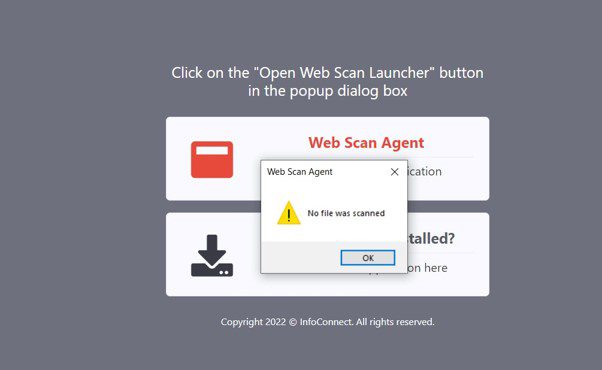
7. If the scanning process fails, user will receive an error message indicating that no file was scanned. Click [OK] to close and retry the process.